
A pop-up video provides a richer and more immersive experience for readers, as it combines visual and audio elements to create a more dynamic presentation. In addition, it can help clarify complex concepts and provide more understandable content to readers with text dyslexia.
Next, let’s see how to add a [Video Munculan] action to an element.
Klik elemen di kanvas -> klik [Tindakan] in the properties panel -> select a triggering timing -> [Video Munculan] -> select a video type
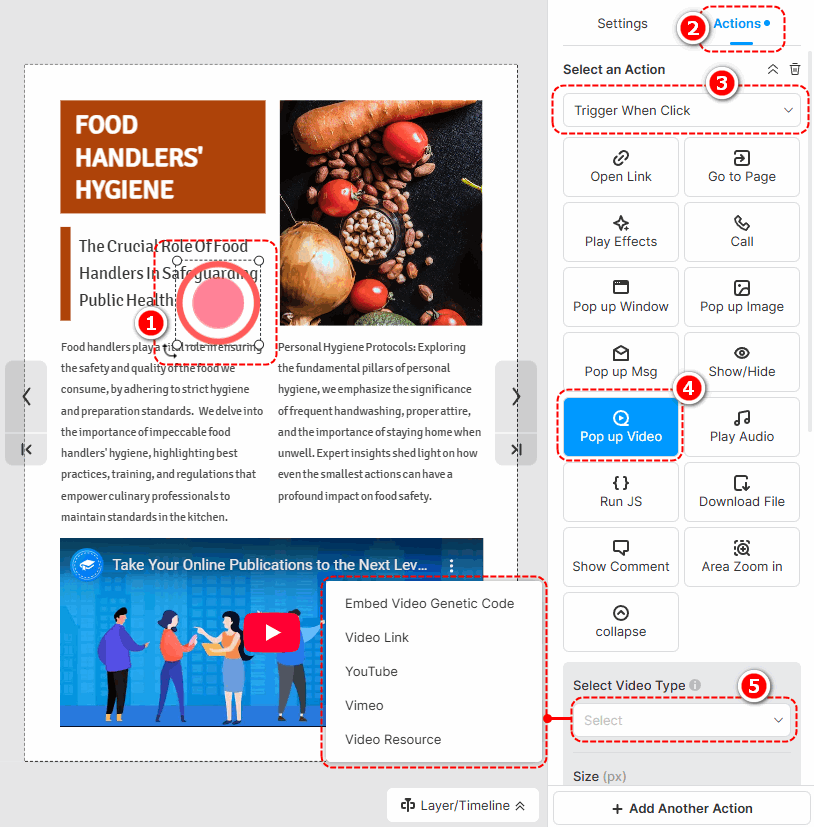
The following are the cautions for adding different types of pop-up videos.
- Embed Video Genetic Code: Paste an embed code of a video.
- Video Link: Use an online URL of a video to add a video.
- YouTube: Paste a YouTube video ID or URL to add a video.
- Vimeo: Paste a Vimeo video ID or URL to add a video.
- Video Resource: Klik [Tambahkan video dari perpustakaan kiri] to add a local video. (Check out how to upload a local video)
After successfully adding a video, you can set the size of the video, write a title, and choose its player settings.
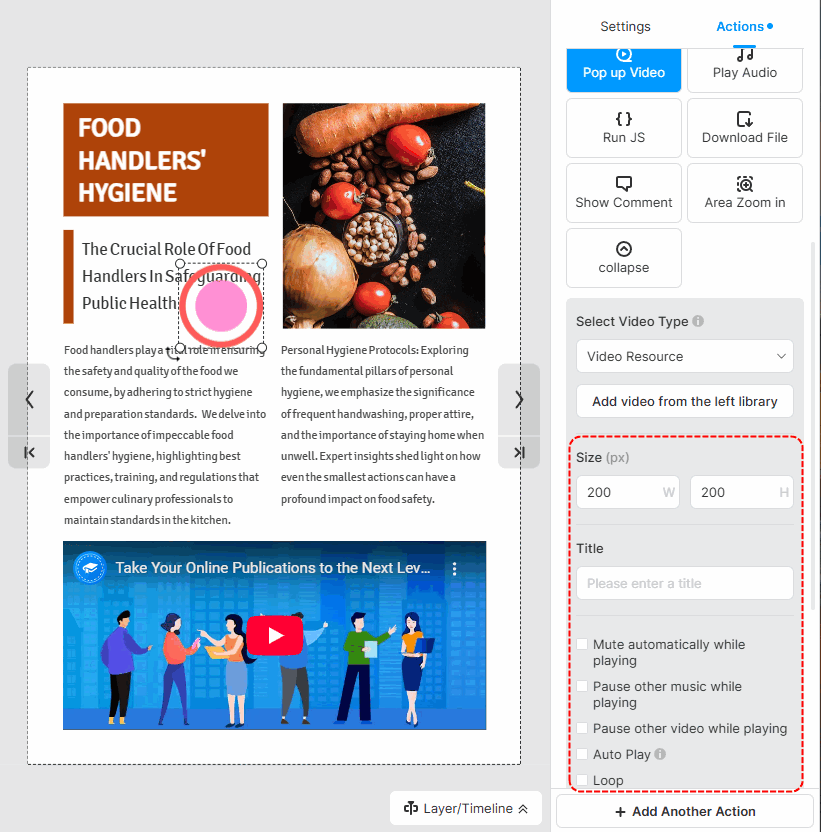
▎Catatan:
1. Added videos by embedding the video genetic code are not allowed to customize player settings.
2. The YouTube and Vimeo videos are muted by default. So if you tick [Auto play] for those videos, you should manually turn their sound on when playing.
Istilah terkait artikel:
video pop-up, media pop-up, kustomisasi jendela pop-up, desain pop-up, elemen interaktif, flipbook interaktif, keterlibatan pengguna, ukuran pop-up, gaya pop-up, menambahkan elemen pop-up, mengedit pop-up elemen, meningkatkan multimedia, meningkatkan interaktivitas


