
A pop-up video provides a richer and more immersive experience for readers, as it combines visual and audio elements to create a more dynamic presentation. In addition, it can help clarify complex concepts and provide more understandable content to readers with text dyslexia.
Next, let’s see how to add a [Video Pop timbul] action to an element.
Klik elemen pada kanvas -> klik [Tindakan] in the properties panel -> select a triggering timing -> [Video Pop timbul] -> select a video type
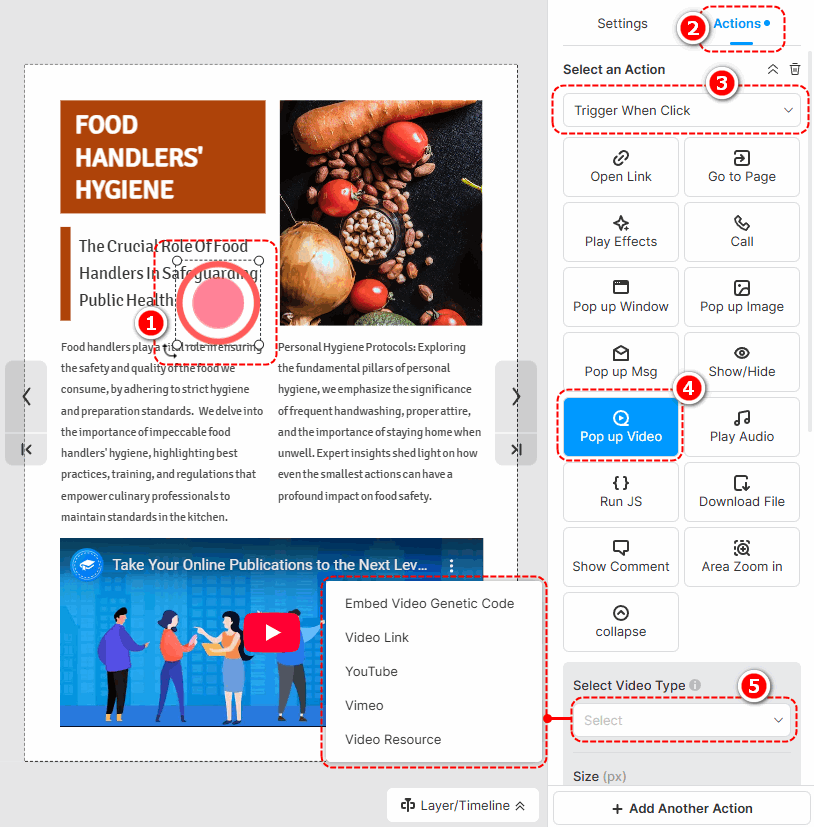
The following are the cautions for adding different types of pop-up videos.
- Embed Video Genetic Code: Paste an embed code of a video.
- Video Link: Use an online URL of a video to add a video.
- YouTube: Paste a YouTube video ID or URL to add a video.
- Vimeo: Paste a Vimeo video ID or URL to add a video.
- Video Resource: klik [Tambah video dari pustaka kiri] to add a local video. (Check out how to upload a local video)
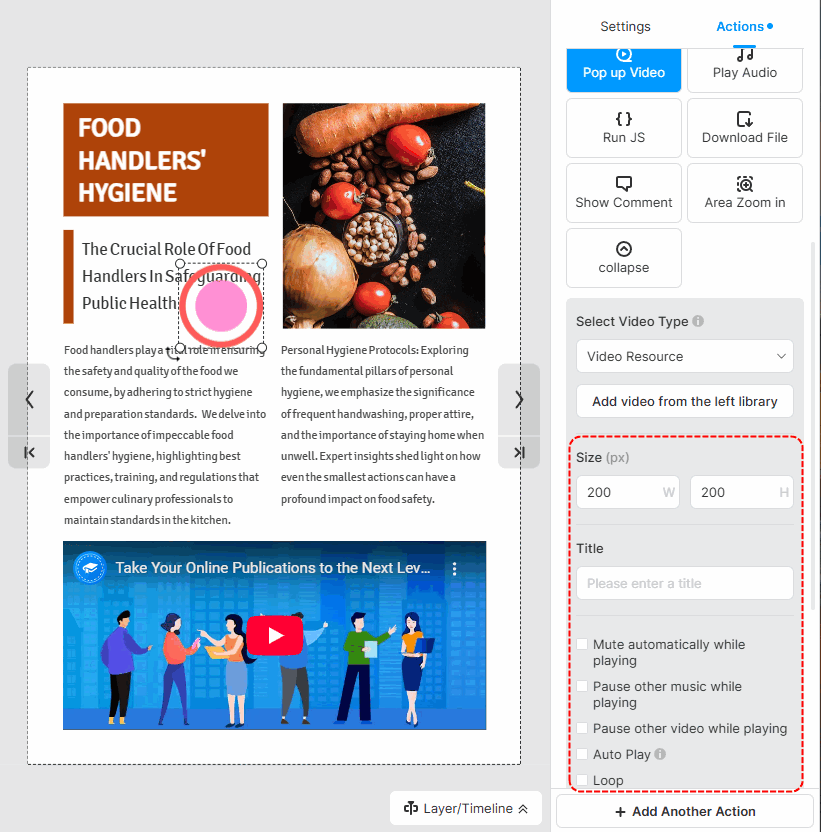
After successfully adding a video, you can set the size of the video, write a title, and choose its player settings.
▎Nota:
1. Added videos by embedding the video genetic code are not allowed to customize player settings.
2. The YouTube and Vimeo videos are muted by default. So if you tick [Auto play] for those videos, you should manually turn their sound on when playing.
Istilah berkaitan artikel:
video pop timbul, media pop timbul, penyesuaian tetingkap timbul, reka bentuk pop timbul, elemen interaktif, flipbook interaktif, penglibatan pengguna, saiz pop timbul, gaya timbul, menambah elemen pop timbul, mengedit pop timbul elemen, meningkatkan multimedia, meningkatkan interaktiviti


